 Zornov
DocsAIZornov 0.1.2
The AI editor
Open Zornov's built-in AI editor, connect it to Claude Code, Codex or an API key, and steer, approve and undo what it does on your timeline.
The AI editor is a panel inside Zornov that edits your project when you ask in plain words. It works on the same timeline you do, and you can take back a whole request in one click.
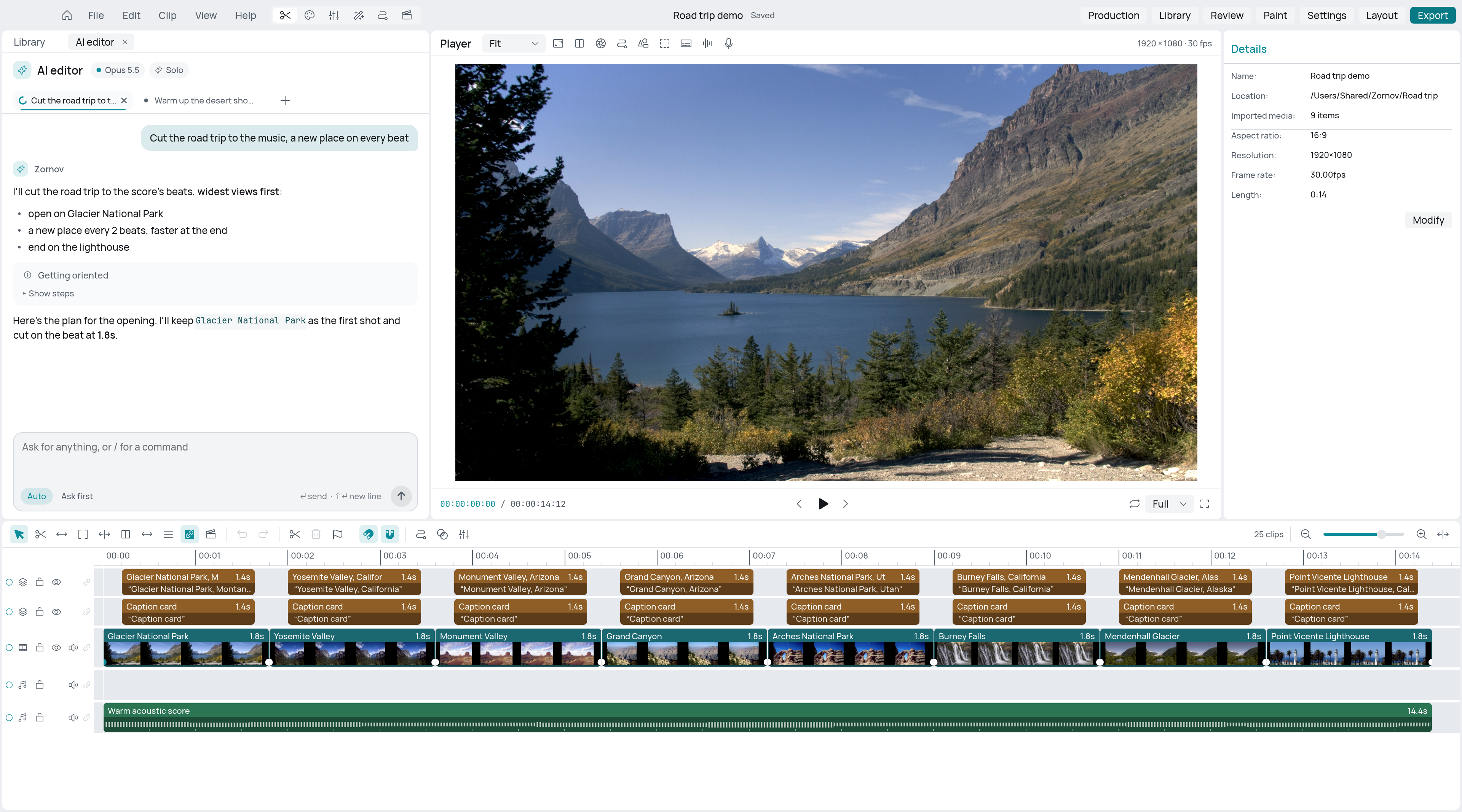
Open the AI editor
- Press ⌘ K on Mac, Ctrl K on Windows and Linux.
- Or open the Library, choose the AI tab, then AI editor.
- Or switch to the Production workspace (⌥ 6 on Mac, Alt 6 on Windows and Linux), which shows your media and the AI editor together.
The AI editor is off until you turn it on. The first time you open the panel it shows Meet the AI editor: click Turn on the AI editor. You can turn it off again in Settings > AI > What is sent with the AI editor on switch.
Connect it
The AI editor doesn't run a model of its own. It uses one you connect. Open Settings (⌘ , on Mac, Ctrl , on Windows and Linux), go to the AI page, and pick one under Answered by:
| Choice | What it uses | What you need |
|---|---|---|
| Claude Code | Your Claude Code sign-in | Claude Code installed (npm install -g @anthropic-ai/claude-code) |
| Codex | Your Codex sign-in | Codex installed and signed in (npm install -g @openai/codex, then codex login) |
| Claude API | An Anthropic API key | A key from console.anthropic.com |
| OpenAI API | An OpenAI API key | A key from platform.openai.com |
For Claude Code and Codex, the note under the choice tells you whether Zornov found the program. Model lets you keep CLI default or pick a specific model.
For the two API choices, paste your key into API key and click Save. Zornov keeps it in your login Keychain and never shows it again. Remove deletes it. Under Model, the first choice is the strongest editor and the last is the quickest and cheapest.
The chip next to the panel's title shows who is answering. Click it to jump to Settings > AI.
Ask for something
Type what you want in the box at the bottom of the panel and press Return. Shift Return starts a new line. On an empty conversation you can also click one of the suggestions, such as Cut the pauses or Score it.
Describe the result you want rather than the steps: "Make it vertical for Reels, faces kept in frame" works better than a list of clicks. Start a line with / to run a Zornov command directly instead of asking the AI.
Point at part of the picture
Two buttons in the viewer's toolbar let you show the AI exactly what you mean:
- Select an area for the AI: drag a box over the picture. It's attached to your next message, so "this" means that box at that moment.
- Annotate for the AI: drag a box or click a spot, type a note, and press Return. The note goes into the message.
Press Esc to put either tool away. Remove a mark before sending with the × on its chip.
Choose how changes land
Below the message box, switch between Auto and Ask first (the same setting is Changes in Settings > AI):
- Auto: changes land on the timeline as they are made.
- Ask first: each change waits in an Approve this change? card. Click Apply, Apply all (this and the rest of the request without asking), or Skip. You can also type "apply", "apply all" or "skip".
Exporting, opening another project and saving somewhere else are always asked, whichever mode you use.
Follow the plan
For bigger jobs the AI editor posts a Plan card first. It shows each step, its status and the latest word from it. Steps marked ◆ are checkpoints: the work stops there until you approve it. Click Apply to carry on, or Skip to send the step back. Anything you type at a checkpoint goes back with the step.
Steer it while it works
- Correct now: type a correction and click Correct now, or press ⌘ Return on Mac (Ctrl Return on Windows and Linux). It changes course at its next step.
- Press Return while it works to queue your next request. It Sends when this one finishes.
- Pause holds it at its next step without losing anything. Resume carries on.
- Stop (or Esc) ends the request. What it has already done stays.
Undo what it did
When a request finishes, an Undo this request button appears under it. It takes back everything the AI changed for that request and keeps what you changed since.
Your own Undo (⌘ Z on Mac, Ctrl Z on Windows and Linux) takes back only your own edits, so you can keep cutting while the AI works.
Solo or crew
The Solo chip in the panel's header means one AI does the whole request. Click it to switch to Crew: a director plans from your brief, then an editor, animator, sound designer, colourist and VFX artist work on their parts side by side, and the director reviews the result. Crew suits bigger jobs. Solo is faster for small ones.
Conversations
Each conversation is a tab across the top of the panel. Click + to start a new one; the others stay. Only one request runs at a time, so a request sent from another tab waits its turn.
What it remembers
After a job, and after you correct it, the AI saves a short lesson for next time. Read, edit or delete them in Settings > AI > What the AI has learned. An edited lesson is kept for good. Delete all lessons clears the list. Lessons are kept on your computer, never inside a project.
Related pages
Something wrong or missing on this page? Tell us on GitHub.