 Zornov
DocsGetting startedZornov 0.1.2
A tour of the window
The parts of the Zornov editor by name: the top bar, Library, Viewer, Inspector, Timeline, the other panels and workspaces.
Each part of the editor window has a name, used throughout this manual. You can move, resize, hide and pop out every panel, so your window may not look exactly like the picture.
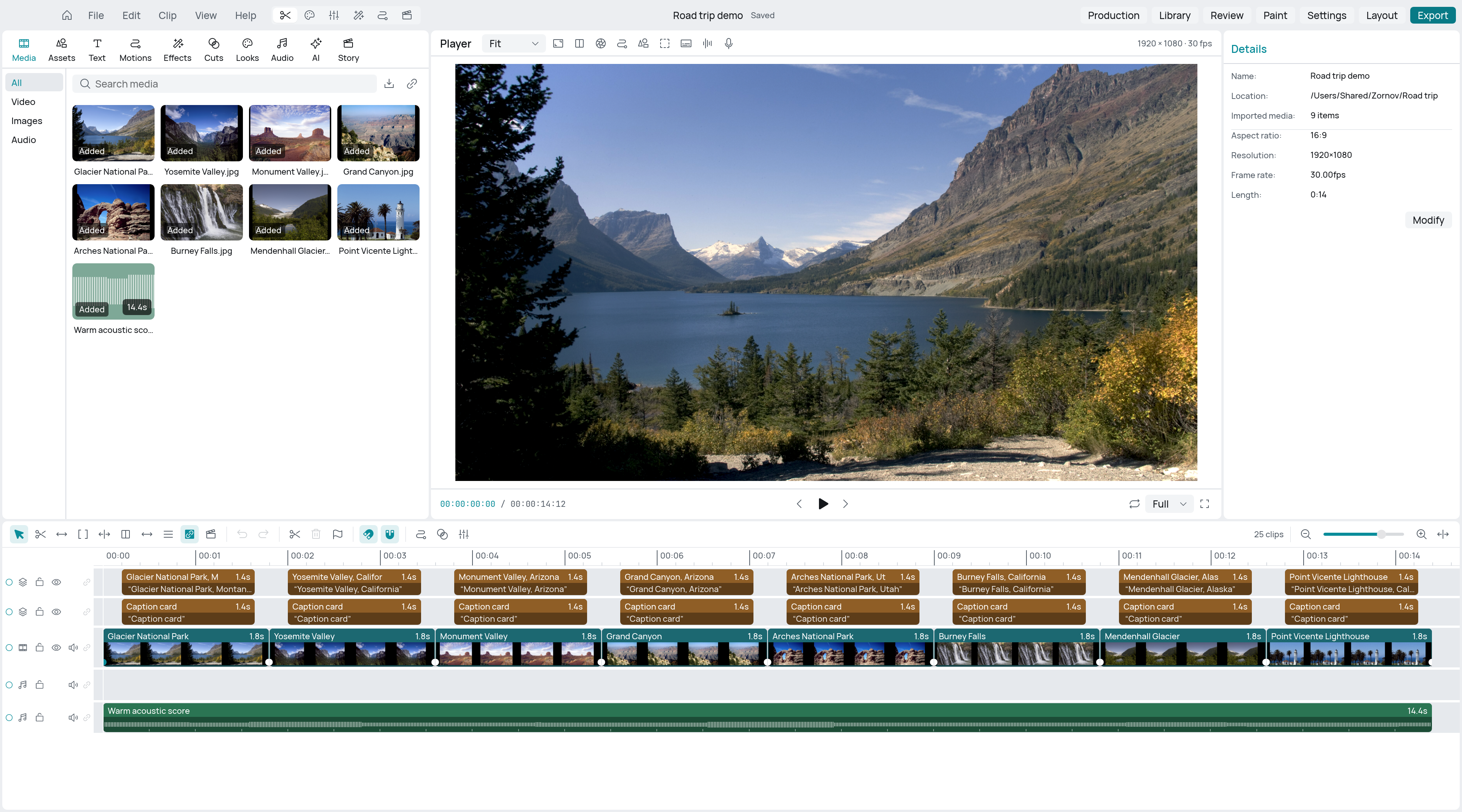
The editor has a top bar and four main panels:
- the Library on the left, with everything you can add
- the Viewer in the middle, showing the picture at the playhead
- the Inspector on the right, with the settings of the selected clip
- the Timeline along the bottom, with your clips in time
The top bar
From left to right:
- All projects (the house button) goes back to the start screen.
- The File, Edit, Clip, View and Help menus.
- The workspace buttons, which rearrange the panels for a kind of work. Hover over one to see its name.
- The project name, with its save state: Not saved, Edited or Saved. Double-click the name to rename the project.
- The bell button for Background jobs, which appears while exports and AI tasks run. Click it to see their progress or cancel one.
- Production opens the production office for the project: breakdown, stripboard, budget and task board.
- Library searches all your media across projects, and shows project health, history, backups and licences. (This is different from the Library panel.)
- Review opens notes, versions and sharing for the project. The button shows how many notes are open.
- Paint opens the Paint workspace for painting and photo editing.
- Settings opens Zornov's settings.
- Layout shows and hides panels, moves them, switches workspaces and saves your own layouts.
- Export makes a finished file. See Export.
Library
The Library holds what you can put in your film. A rail of sections runs down its side; press the number keys 1 to 0 to jump between them.
| Key | Section | What it holds |
|---|---|---|
| 1 | Media | Your imported video, pictures and sound. Import media brings in more. |
| 2 | Assets | Stickers, emoji, shapes, frames, overlays, backgrounds and photos from the content library |
| 3 | Text | Title and text styles |
| 4 | Motions | Entry and exit animations |
| 5 | Effects | Effects for a clip, or for everything beneath an adjustment clip |
| 6 | Cuts | Transitions between two clips |
| 7 | Looks | Ready-made colour treatments |
| 8 | Audio | Music and sound effects from the content library |
| 9 | AI | Opens the AI editor, and holds the AI tools |
| 0 | Story | The script, storyboard, places and characters of your film |
Drag an item onto the timeline, or press the + on it. Effects, motions, cuts and looks apply to the selected clip when you click them.
The Assets and Audio sections use Zornov's content library, a free download of about 280 MB. The first time you open one of them, click Download the library.
Viewer
The Viewer shows the picture at the playhead. Below it are the transport controls: play and pause, Previous frame and Next frame. The buttons around it include:
- the preview quality menu (Full, Half or Quarter)
- Loop, which loops the sequence, or the range between your in and out points
- Full screen, which fills the screen with the picture
- Before / after, which compares the picture with and without your changes
- Overlays: Safe areas, Rule of thirds, Golden ratio and Centre cross
- 3D workspace, which turns the Viewer into a 3D view of the scene
You can drag, resize and edit titles, shapes and other layers directly on the picture.
Inspector
The Inspector shows the settings of the selected clip, grouped in tabs. Which tabs you see depends on the kind of clip:
| Clip | Tabs |
|---|---|
| Video | Video, Audio, Speed, Animation, Adjust, Advanced |
| Audio | Audio, Speed, Advanced |
| Title, shape or 3D model | Text (or Shape or Model), Animation, Adjust, Advanced |
| Adjustment clip | Adjust, Advanced |
The Adjust tab has colour and effects. The Animation tab has motion and keyframes. Settings that are rarely needed are in Advanced.
Timeline
The Timeline shows your clips in time, on lanes. The Main lane holds the story: clips on it sit end to end, and a gap closes when you remove a clip. Other lanes hold titles, overlays and sound wherever you put them. Each lane has buttons at its left to lock, hide or mute it.
The playhead is the vertical line across the lanes. Click the ruler to move it.
The toolbar above the lanes has, from left to right:
- the tools: Select (A), Blade (B), Slip (Y) and Range (R)
- the trim modes: Ripple trim, Roll trim and Slide, then Editorial, Linked selection (a picture and its sound move together) and Source monitor
- Undo and Redo
- Split at playhead, Delete selection and Add marker
- Snapping and Magnetic main lane
- the Graph editor, which shows the selected clip's animation as curves
- the Compositor, which shows the selected clip's node graph
- Sound, which swaps the timeline for the mixer, loudness and stems, dialogue and ADR, and subtitles and dubs
- at the right, the number of clips, and Zoom out, the zoom slider, Zoom in and Fit sequence
Other panels
These panels are closed in the default layout. Open them from Layout > Panels, or from the View menu.
- Sound: the mixer and sound tools. It takes the timeline's place.
- Scopes: waveform, vectorscope and other readings of the picture, for colour work.
- Review: notes, versions and sharing.
- Record: record from cameras, microphones and screens, and record voice-overs while the timeline plays.
- Editorial: the timeline index, gaps and duplicates, takes, sequences, and editing by words.
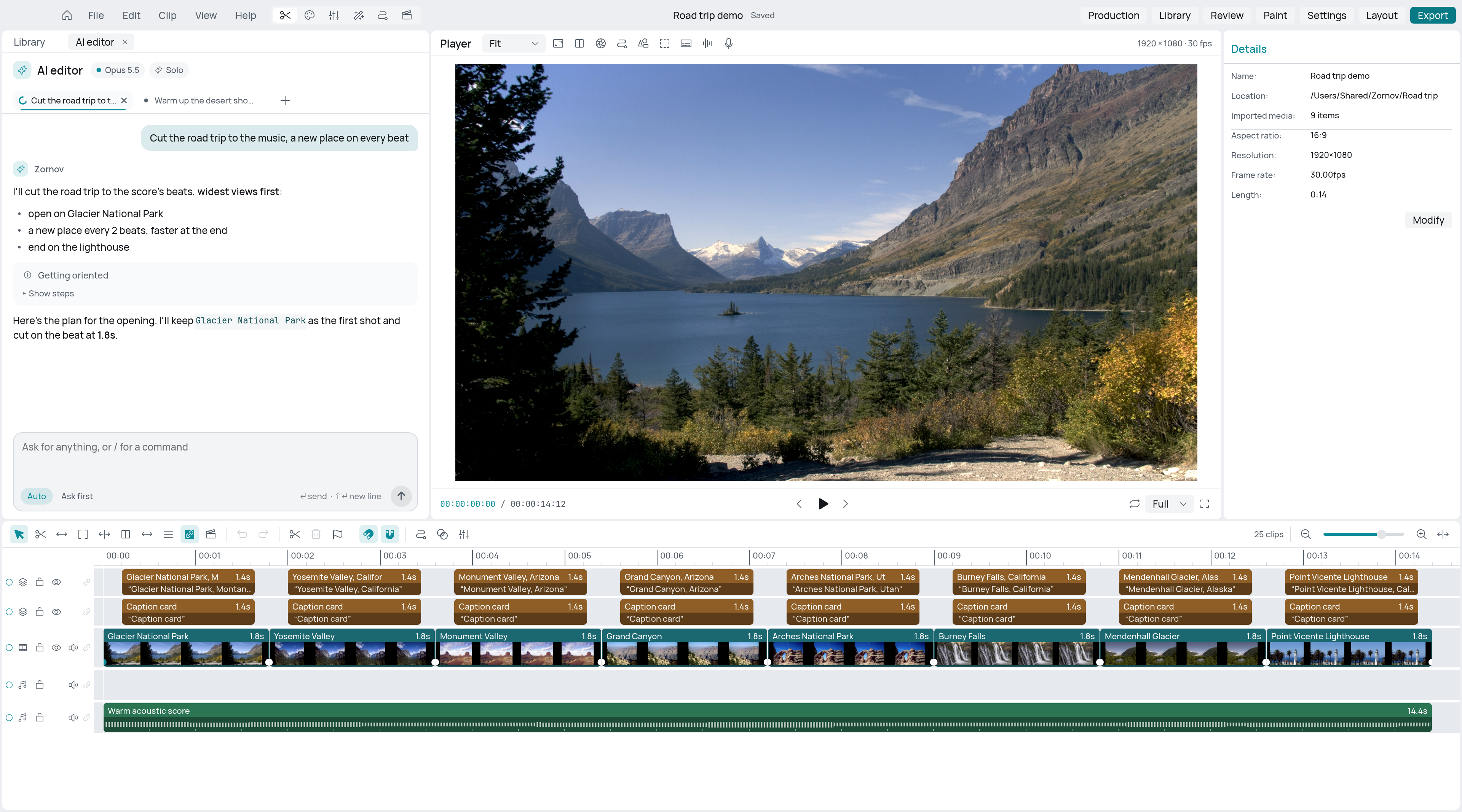
- AI editor: describe a job in plain words. Press ⌘ K on Mac or Ctrl K on Windows and Linux to open it. See The AI editor.
Workspaces
A workspace arranges the panels for one kind of work. Click one in the top bar, choose it from the Layout menu, or press ⌥ with a number on Mac, or Alt with a number on Windows and Linux.
| Keys | Workspace | Set up for |
|---|---|---|
| ⌥ 1 | Edit | Cutting and arranging: a big timeline with your media beside it |
| ⌥ 2 | Colour | Grading and matching shots: looks, colour controls and scopes |
| ⌥ 3 | Audio | Mixing sound: audio tools, a tall timeline and level controls |
| ⌥ 4 | VFX | Effects, masks and tracking on a large viewer |
| ⌥ 5 | Motion graphics | Titles, shapes and animation with keyframes close at hand |
| ⌥ 6 | Production | Planning and review: your media and the AI editor, with a short timeline |
A workspace only sets which panels are open, where they are and what the Library and Inspector show. Nothing is locked: you can still change everything afterwards.
Arrange the panels
- Resize a panel by dragging the edge between two panels.
- Move a panel by dragging its header (or its tab) onto another panel. As you drag, Zornov shows where it will land: left, right, above or below that panel, or into it as a tab. Press Esc to cancel.
- Use a menu instead: right-click a panel's header, or choose Layout > Move panel.
- Pop out a panel into its own window from the same menu. Every panel except the Viewer can pop out.
- Show or hide a panel from Layout > Panels. The Library, Inspector and Timeline have shortcuts: ⌥ ⌘ L, ⌥ ⌘ I and ⌥ ⌘ T on Mac, or Ctrl Alt L, I or T on Windows and Linux.
- Save your layout by typing a name in Save layout as… in the Layout menu. It then appears with the workspaces.
- Start again with Layout > Reset layout.
Help in the window
Press F1 to search the help. The Help menu also has the Welcome tour and the list of Keyboard shortcuts. Short tips appear now and then when they apply; turn them off in Settings > General > Tips.
To move around the window from the keyboard, press F6 and Shift F6 to go between the Library, Viewer, Inspector and Timeline. See Keyboard shortcuts.
Something wrong or missing on this page? Tell us on GitHub.