 Zornov
DocsGetting startedZornov 0.1.2
Make your first project
Start a project, bring in your footage, make a first cut, add a title and export a finished video in Zornov.
A whole first edit, from a new project to an exported video file, takes about ten minutes.
Start a project
When Zornov opens, you see the start screen.
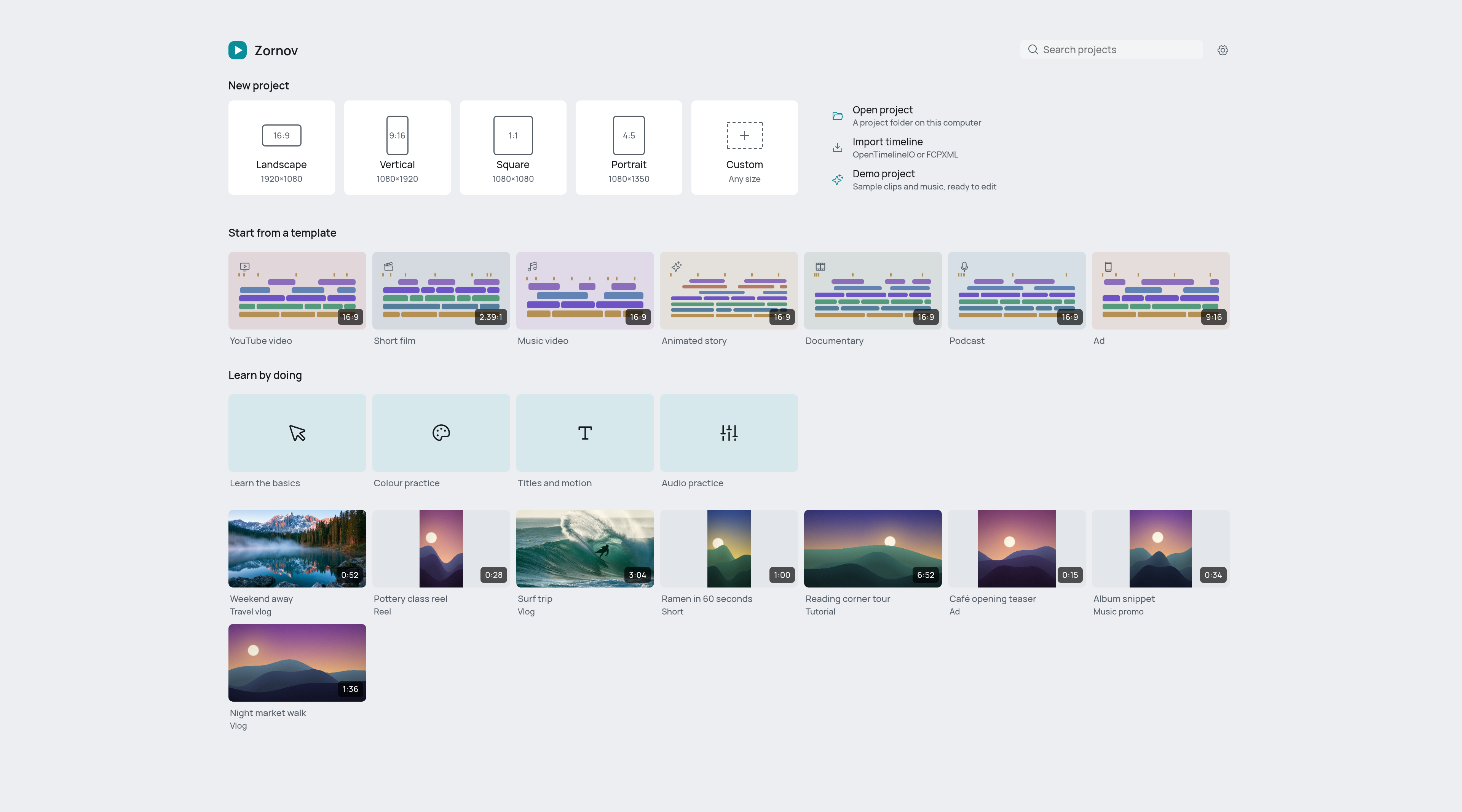
Under New project there are cards for each frame shape:
| Card | Size | Good for |
|---|---|---|
| Landscape | 16:9, 1920 × 1080 | YouTube, vlogs |
| Vertical | 9:16, 1080 × 1920 | Reels, shorts |
| Square | 1:1, 1080 × 1080 | Feeds |
| Portrait | 4:5, 1080 × 1350 | Feed posts |
| Custom | Any size | Set the width, height and frame rate yourself |
Beside them are three other ways in:
- Open project opens a project folder on your computer.
- Import timeline opens an OpenTimelineIO or FCPXML file from another editor as a new project.
- Demo project opens sample clips and music, ready to edit.
Below these, Start from a template sets up a project for one kind of film: YouTube video, short film, music video, animated story, documentary, podcast or ad. Each template sets the frame size and frame rate, makes the lanes that kind of film uses, marks its structure with markers and adds placeholder titles. Learn by doing opens a sample project with the steps of a lesson written as markers on the timeline. Your recent projects and the samples are listed underneath.
To follow this page, click Landscape. You can also press ⌘ N on Mac or Ctrl N on Windows and Linux.
The editor opens with a new project called "Untitled landscape". Zornov gives every new project its own folder straight away, so it is already saved and appears on the start screen.
Bring in your footage
- Choose File > Import media…, or press ⌘ I on Mac or Ctrl I on Windows and Linux. You can also click Import media in the Library on the left.
- Pick your video, audio and picture files and choose Open.
The files appear in the Library's Media section. Zornov works from your files where they are; it doesn't copy them into the project, so keep them where they are.
If Zornov can't play a file directly, it converts it in the background and adds it when it is ready. The bell button in the top bar shows background jobs and their progress.
No footage to hand? Choose File > Add sample media to get some sample clips.
Put clips on the timeline
- Move the playhead to where the clip should go. Click the ruler at the top of the timeline to place it.
- Do one of these:
- drag a clip from the Library onto the timeline
- press the + on a Library item
- double-click a clip in the Library
A video clip lands on the Main lane at the playhead, and an audio file lands on an audio lane. The Main lane holds your story and closes gaps by itself, so clips placed there sit end to end.
Press Space to play and pause. J, K and L play backwards, stop and play forwards; press J or L again to go faster. The left and right arrow keys step one frame.
Make a first cut
Split a clip: put the playhead where you want the cut and press S. The selected clip, or every clip under the playhead, is split in two.
Remove a piece: click it to select it, then press ⌫ (Delete) on Mac, or Backspace or Delete on Windows and Linux. On the Main lane, the gap closes.
Trim a clip: drag its left or right edge.
Move a clip: drag it along its lane, or to another lane.
Undo: press ⌘ Z on Mac or Ctrl Z on Windows and Linux. Redo is ⇧ ⌘ Z on Mac or Shift Ctrl Z on Windows and Linux. You can undo as many steps as you need.
To see the whole edit at once, press ⇧ Z on Mac or Shift Z on Windows and Linux.
Add a title
- Put the playhead where the title should start.
- In the Library, open the Text section.
- Click a text style. A title clip appears at the playhead.
- With the title selected, type your words in the Inspector's Text tab on the right. You can change the size, colour, spacing and alignment there too.
A title is a clip like any other, so you can move, trim and animate it. For more, see Titles and text.
Save your work
Zornov saves your project automatically 30 seconds after your last change and keeps 20 backups. The top bar shows Edited when there are changes not yet saved, and Saved when everything is saved.
To save at any time, press ⌘ S on Mac or Ctrl S on Windows and Linux. To save a copy somewhere else, choose File > Save as….
New projects are kept in a Studio/Projects folder inside your Movies folder (Mac) or Videos folder (Windows and Linux). A project is a folder; to open one later, click it under Recent projects on the start screen, or choose File > Open….
Export a video
- Click Export at the top right, or press ⌘ E on Mac or Ctrl E on Windows and Linux.
- Under Presets, pick one. Social 1080p makes an H.264 MP4 at 1920 × 1080 that suits the web and most social apps.
- Check the File name and where it goes in Export to. Click Change… to pick another folder.
- Leave Range on Whole sequence, or choose In–out range to export only the part between your in and out points (set them with I and O).
- Click Export, or press ⌘ ↩ on Mac or Ctrl Enter on Windows and Linux.
The export runs in the background. Click Run in background to keep editing while it works. When it is done, the dialog shows where the file was saved. For every preset and format, see Export.
Next steps
- Take a tour of the window to learn what each panel does.
- Learn the keyboard shortcuts.
- Try a Learn by doing project on the start screen: basics, colour, titles and motion, or audio.
- Ask the AI editor to do a job for you: press ⌘ K on Mac or Ctrl K on Windows and Linux.
Something wrong or missing on this page? Tell us on GitHub.