 Zornov
DocsEditingZornov 0.1.2
The timeline
Find your way around the timeline in Zornov: lanes, the playhead, zoom, snapping, selecting clips, in and out points and markers.
The timeline is where you put your film in order.
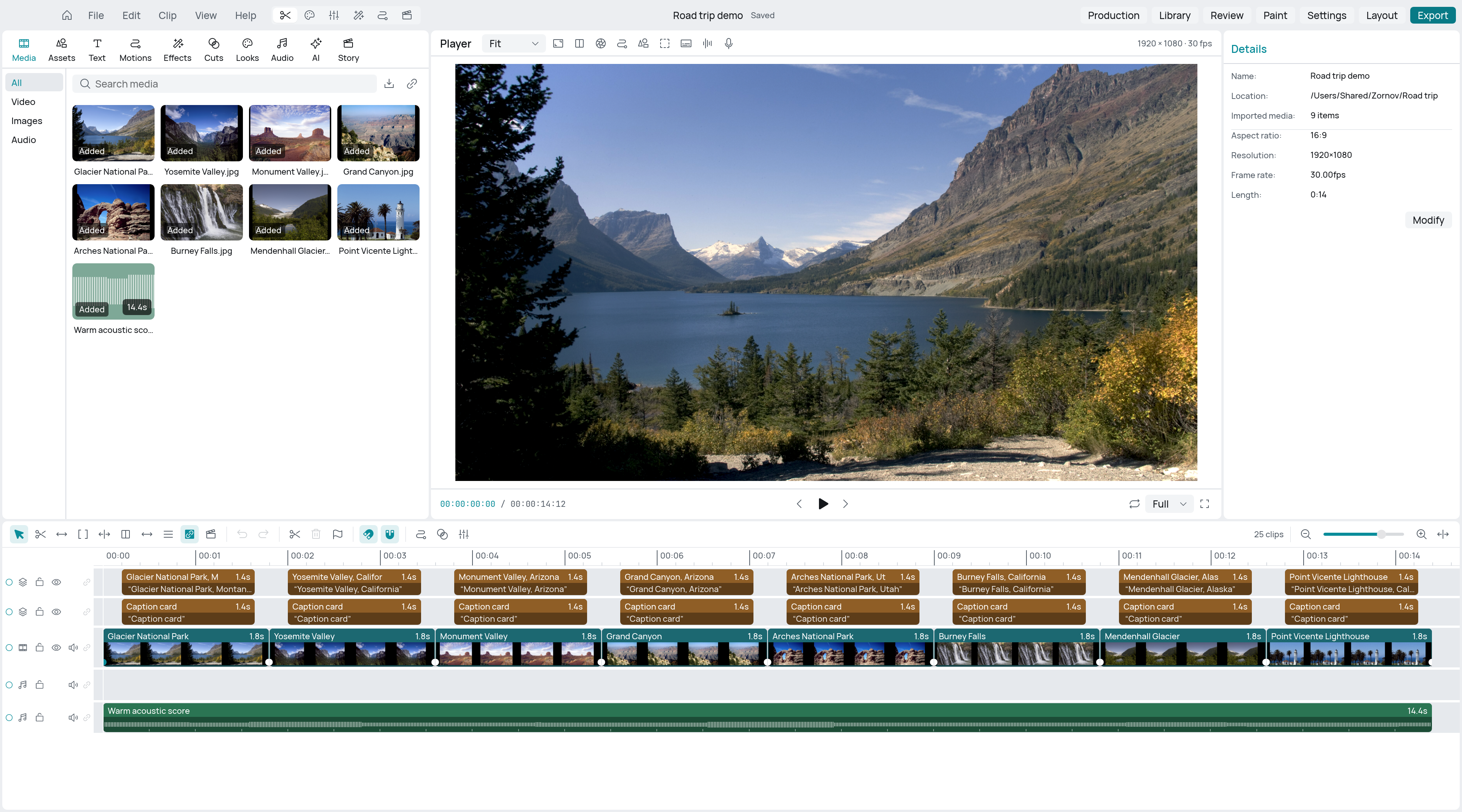
Lanes
A new project starts with five lanes, from top to bottom:
| Lane | Kind | Holds |
|---|---|---|
| Titles | Picture | Text, shapes and other layers |
| Overlay | Picture | Pictures and video shown over the main lane |
| Main | Main lane | Your main footage, with its sound |
| Voice | Sound | Narration and dialogue |
| Music | Sound | Music |
Lanes higher up sit in front of lanes lower down, so a title on the Titles lane shows over the footage on Main.
The Main lane is special. Clips on it sit end to end with no gaps, and when Magnetic main lane is on (the default), removing or moving a clip there closes the space up. The other lanes are free: clips stay where you put them. When you add a clip to a free lane and something is already in the way, Zornov finds room for it, adding a lane if it has to.
Video and still pictures can go on Main or any picture lane. Titles, shapes and adjustment clips go on picture lanes other than Main. Sound clips go on sound lanes.
Lane controls
Each lane has buttons on its left, in the lane header:
- Lock lane stops clips on that lane from being selected, moved or trimmed. Click a clip on a locked lane and Zornov tells you the lane is locked.
- Hide lane stops a picture lane from showing.
- Mute lane silences a sound lane or the Main lane.
- The target button (a circle) chooses which lanes marks, lift and extract use. See Clips and trimming.
- The sync lock button (a chain) makes the lane follow ripple edits made on other lanes, so a music bed or overlay stays in step with the main lane.
To make a lane taller or shorter, drag the line under its header.
The playhead
The playhead is the vertical line across the lanes, with a small handle in the ruler. The player shows the frame under it.
- Click the ruler to put the playhead there, or drag in the ruler to scrub.
- Drag across empty space in the lanes with the Blade or Slip tool to scrub too.
- Click a marker or a keyframe mark to jump to it.
| Keys | Does |
|---|---|
| Space | Play or pause |
| J | Play backwards (press again to go faster) |
| K | Stop |
| L | Play forwards (press again to go faster) |
| ← → | Back or forward one frame |
| Shift ← Shift → | Back or forward one second |
| ↑ ↓ | Previous or next edit point |
| Home End | Start or end of the sequence |
While it plays, the timeline scrolls to keep the playhead in view.
Zoom and scroll
When you open a project, the timeline fits the whole sequence to its width, and keeps it fitted as you resize the panel until you zoom yourself.
- Use Zoom in and Zoom out on the right of the timeline toolbar, or the slider between them.
- Press ⌘ = and ⌘ - on Mac, or Ctrl = and Ctrl - on Windows and Linux.
- Hold ⌘ (Mac) or Ctrl (Windows and Linux) and scroll, or pinch on a trackpad, to zoom around the pointer.
- Click Fit sequence or press Shift Z to see the whole sequence again.
Scroll to move up and down through the lanes. Hold Shift and scroll, or swipe sideways on a trackpad, to move along in time. When all the lanes fit, a plain scroll moves along in time.
Snapping
With snapping on, clips, trims, the blade and the playhead jump to nearby points as you drag, and a line shows what they snapped to. Clips snap to:
- the playhead and the start of the sequence
- the start and end of other clips
- markers, on the sequence and on clips
- the in and out points
- keyframes and the edges of transitions
- the beat ticks on clips in the Music lane
- the end of the sequence
Turn snapping on or off with the magnet button in the toolbar, or press N. The button next to it, or Shift M, turns Magnetic main lane on or off.
Tools
The four tools sit at the left of the timeline toolbar:
| Tool | Key | What a drag does |
|---|---|---|
| Select | A | Moves clips, trims their edges, or draws a box to select |
| Blade | B | Click a clip to cut it in two at that point |
| Slip | Y | Changes which part of the footage a clip shows |
| Range | R | Sets the in and out points |
Clips and trimming covers what each tool does to clips.
Select clips
With the Select tool:
- Click a clip to select it.
- Hold Shift or ⌘ (Ctrl on Windows and Linux) and click to add a clip to the selection or take it out.
- Drag across empty space to draw a box. Every clip it touches is selected. Hold Shift or ⌘ (Ctrl) to add to what is already selected.
- Press ⌘ A (Ctrl A) to select every clip.
- Click empty space or press Esc to select nothing.
From the keyboard, [ and ] select the previous or next clip on the lane (unless an edit point is selected for trimming), and Alt ↑ or Alt ↓ selects the clip on the lane above or below. (On Mac, Alt is ⌥.)
The toolbar shows how many clips are selected, and the Inspector shows the settings of the selection. When several clips are selected, a change in the Inspector applies to all of them.
To select a transition, click the bow-tie shape over the cut.
In and out points
The in and out points mark a range of the sequence. The range shows as a band in the ruler.
- Move the playhead to where the range starts and press I.
- Move to where it ends and press O.
Or pick the Range tool and drag across the timeline. Press Alt X (⌥ X on Mac) to clear the range. The same commands are in the Clip menu.
With a range set, Loop in the player (⌘ L, or Ctrl L) plays just that range over and over. Lift and extract also use the range.
Markers
Markers note a moment: a beat, a line to fix, a place for a title.
- Move the playhead to the moment.
- Press M, or click Add marker in the toolbar.
A marker shows as a flag in the ruler and a faint line down the lanes. Hover over it to see its name and time. Click it to move the playhead there. You can also add a marker from a clip's right-click menu with Add marker at playhead.
Undo
Every change on the timeline can be undone. Press ⌘ Z to undo and Shift ⌘ Z to redo (Ctrl Z and Shift Ctrl Z on Windows and Linux), or use the buttons in the timeline toolbar. Most edits also show a message with an Undo button. Press Esc during a drag to put everything back as it was.
Other views in the timeline
Three buttons on the timeline toolbar swap the lanes for another view of the same time:
- Graph editor (Shift G): the selected clip's animation as curves.
- Compositor (Shift C): the selected clip's node graph. See Compositing.
- Sound (Shift X): the mixer, loudness and stems. See Audio and mixing.
Click the button again to go back to the clips.
You can change any of these shortcuts in Settings > Shortcuts. See Keyboard shortcuts for the full list.
Something wrong or missing on this page? Tell us on GitHub.